WIB WooCommerce WhatsApp Notifier Pro
Advanced WooCommerce WhatsApp notification and automation plugin for order alerts, admin notifications, multi-agent WhatsApp Chat, and customer messaging.
- Multi-Gateway Messaging Engine: Instant support for Meta WhatsApp Cloud API, Twilio API, Infobip API, and UltraMsg QR Gateway.
- Complete Order Lifecycle Alerts: Automated WhatsApp messages for 10 distinct WooCommerce order statuses (Customer & Admin alerts).
- Dynamic Variable Mapping: Robust 8-variable substitution engine (`{{1}}Name` to `{{8}}Payment`).
- Built-in Meta Template Creator: Design and submit official WhatsApp templates directly to Meta from your WordPress dashboard.
- Frontend Conversions: Floating multi-agent WhatsApp Chat Widget and Single Product Page "Buy via WhatsApp" buttons.
- Per-Domain License Security: Secure CodeCanyon purchase verification with local development fallback support.
- Advanced Diagnostics: Live AJAX connection testing tools and unified message delivery logs.
Installation & Setup
Installing WIB WooCommerce WhatsApp Notifier Pro is quick and straightforward. Follow these steps to get started:
Download Plugin Archive
Download the latest `wib-whatsapp-notifier-pro.zip` file from your Envato / CodeCanyon downloads dashboard.
Upload to WordPress
Log in to your WordPress dashboard, navigate to Plugins > Add New > Upload Plugin, choose the zip file, and click Install Now.
Activate Plugin
Once uploaded, click Activate Plugin. The plugin will automatically run a database check and create its custom logging tables.
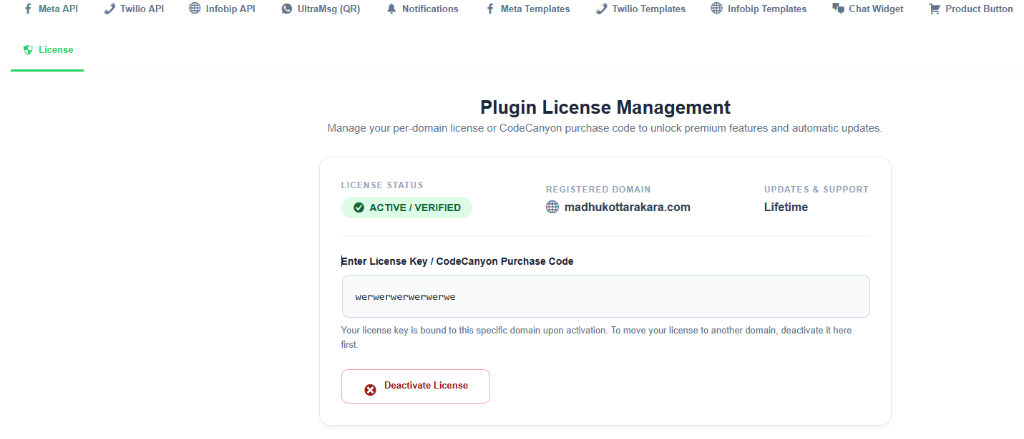
License Management
To unlock premium features and receive automated updates, you must bind your CodeCanyon purchase code to your active domain.
- Log in to your Envato / CodeCanyon account and go to your Downloads page.
- Click the Download button next to the plugin and select License certificate & purchase code.
- Open the downloaded PDF/Text file and copy your 36-character Item Purchase Code.
- In your WordPress dashboard, navigate to WIB WhatsApp Notifier > License.
- Paste your purchase code into the input field and click Activate License.
Gateway Configuration
WIB WhatsApp Notifier Pro supports 4 powerful messaging gateways. Choose the tab below that matches your preferred service to see detailed setup instructions:
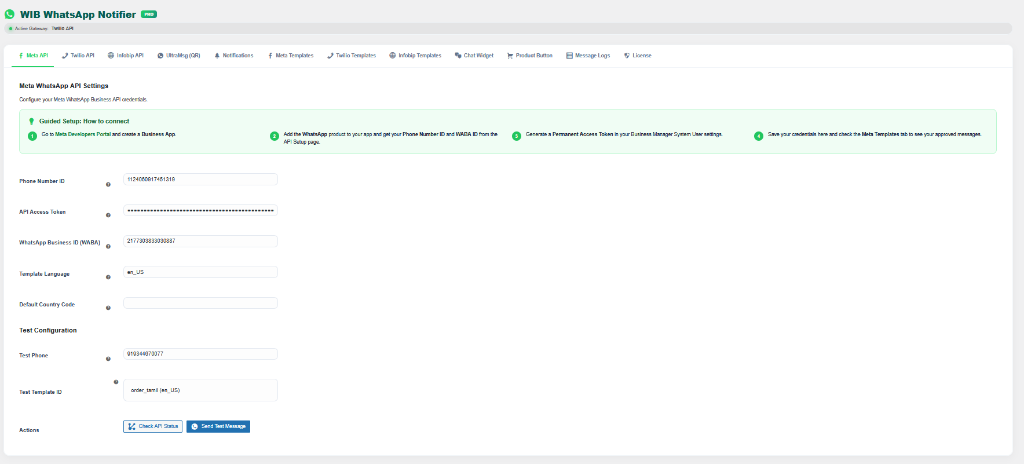
The Meta Cloud API is free to access and provides official WhatsApp business verification. Here is how to configure it:
- Go to the Meta Developers Portal and create a new Business App.
- Add the WhatsApp product to your application.
- In the left menu, go to WhatsApp > API Setup. Here you will find your Phone Number ID and WhatsApp Business Account ID (WABA ID).
- To generate a permanent access token, go to your Business Manager Settings. Navigate to Users > System Users.
- Create a System User, assign them admin permissions for your app, and click Generate New Token (select `whatsapp_business_management` and `whatsapp_business_messaging` permissions).
- Paste your Phone Number ID, WABA ID, and Permanent Access Token into the plugin settings at WooCommerce > Settings > WhatsApp > Meta API.
Twilio is a robust cloud communications platform. Follow these steps to configure your Twilio credentials:
- Log in to your Twilio Console dashboard.
- Copy your Account SID and Auth Token from the main console screen.
- Navigate to Messaging > Senders > WhatsApp Senders and copy your approved Twilio WhatsApp phone number (e.g., `+14155238886`).
- In WordPress, go to WooCommerce > Settings > WhatsApp > Twilio API, enter these credentials, and click Save Changes.
Infobip provides high-deliverability enterprise messaging. Here is how to connect:
- Log in to your Infobip Portal.
- Generate a new API Key in your developer settings.
- Copy your personalized Base URL (e.g., `api.infobip.com` or your custom subdomain).
- Go to Channels > WhatsApp > Senders and copy your registered WhatsApp sender number.
- Enter these details under the Infobip API tab in the plugin settings.
UltraMsg allows you to link your existing personal or business WhatsApp number instantly via a QR code scan. You do not need Meta template approvals!
- Create an account at UltraMsg.com and create a new instance.
- Copy your Instance ID (e.g., `instance12345`) and Token.
- In WordPress, go to WooCommerce > Settings > WhatsApp > UltraMsg (QR) and save these credentials.
- Click the Show Login QR Code button in the plugin settings.
- Open WhatsApp on your mobile phone, go to Linked Devices > Link a Device, and scan the QR code displayed on your WordPress screen.
Order Notifications & Triggers
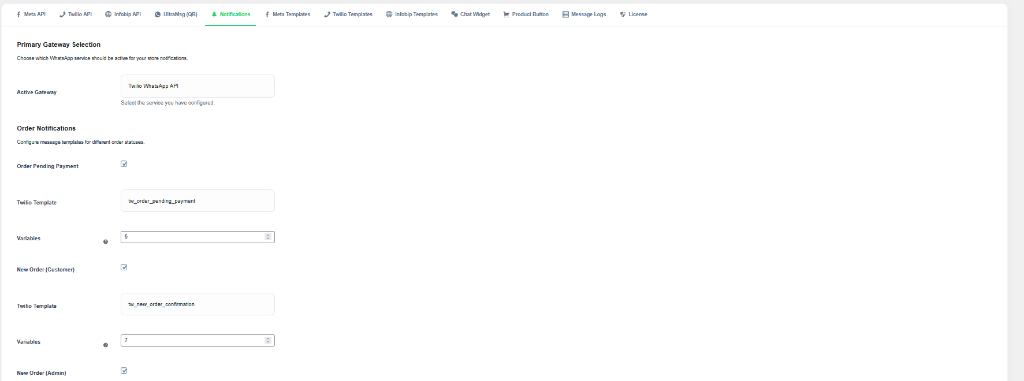
You can configure automated WhatsApp alerts for both customers and store administrators across 10 distinct order lifecycle events.
Navigate to WooCommerce > Settings > WhatsApp > Notifications. Here you can select your active primary gateway and check the box next to any order status you wish to enable (e.g., *New Order*, *Order Processing*, *Order Shipped*).
Admin Notification Settings
For the New Order (Admin) trigger, you can specify one or multiple administrator phone numbers separated by commas (e.g., `+1234567890,+0987654321`).
When creating templates in Meta, Twilio, Infobip, or UltraMsg, use the exact numbered placeholders below. The plugin will automatically substitute them with live order data:
Template Management
Managing message templates varies slightly depending on your active gateway. Here is how to handle each:
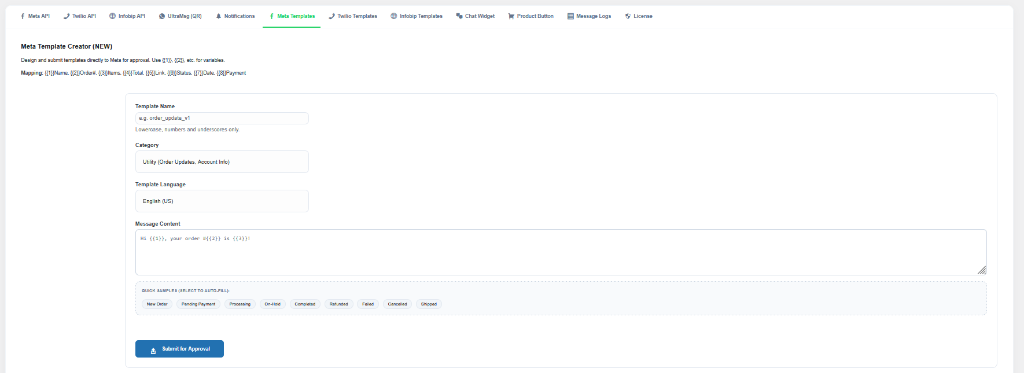
You no longer need to log into the Facebook Business Manager to create templates! Navigate to WooCommerce > Settings > WhatsApp > Meta Templates.
- Enter a lowercase template name (e.g., `order_shipped_alert`).
- Select the Category (`UTILITY` or `MARKETING`) and Language.
- Write your message body using the `{{1}}`, `{{2}}` variables. You can also click any of the Quick Sample Chips to auto-fill proven message structures!
- Click Submit for Approval. The plugin will push the template directly to Meta. Once approved by Meta (usually within 2-5 minutes), it will appear in your dropdown lists automatically.
Viewing Approved Templates
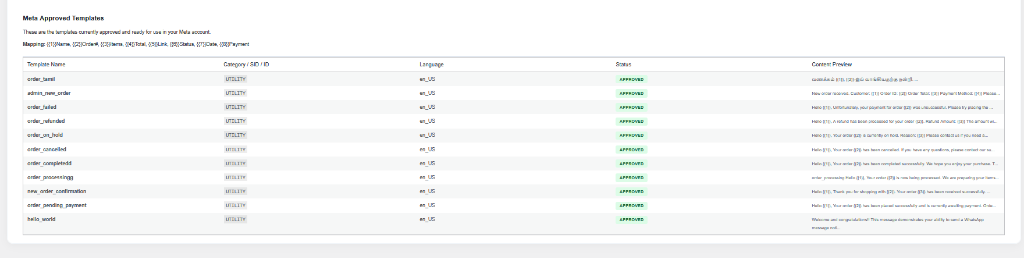
You can view all currently approved templates and their sync status under the Meta Templates tab:
Since UltraMsg uses your linked phone directly, you do not need official template approvals. Under the UltraMsg (QR) settings tab, you can write fully custom text messages for every order status using intuitive named tags like `{name}`, `{order_id}`, `{total}`, and `{url}`.
Floating WhatsApp Chat Widget
Provide exceptional frontend customer support by enabling the multi-agent floating WhatsApp chat widget.
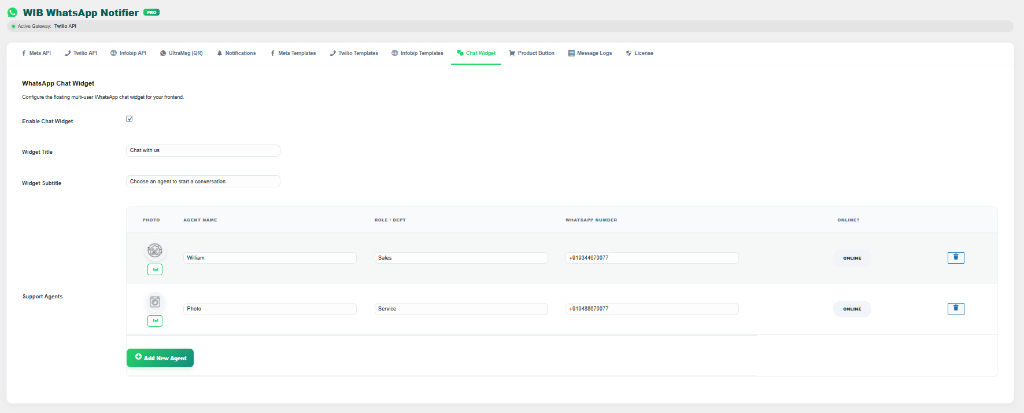
Go to WooCommerce > Settings > WhatsApp > Chat Widget. Here you can configure:
- Widget Header: Custom Title (*"Chat with us"*) and Subtitle (*"Choose an agent to start a conversation"*).
- Agent Repeater: Click Add New Agent to create multiple support profiles.
- Agent Details: Upload a custom avatar photo, enter their Name, Department/Role (*"Sales"*, *"Technical Support"*), and WhatsApp phone number.
- Availability Toggle: Switch agents between Online and Offline instantly. Offline agents will display a grey badge and prevent chats outside working hours.
Single Product Page Button
Boost your store's direct conversion rate by adding an "Order on WhatsApp" button directly to single product pages.
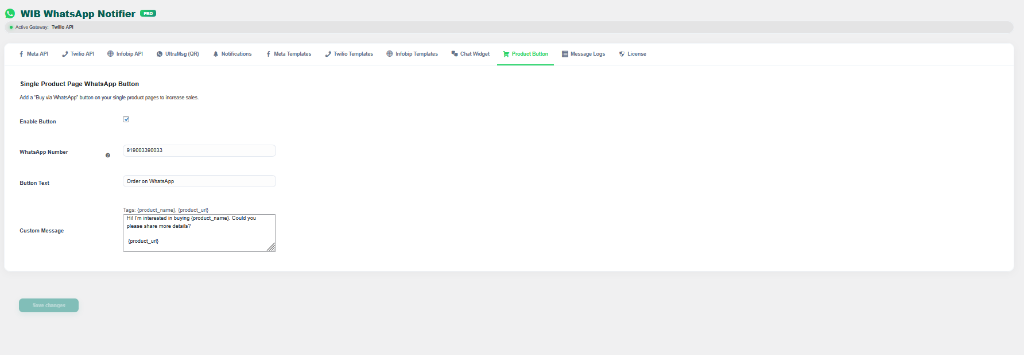
Navigate to WooCommerce > Settings > WhatsApp > Product Button. You can customize:
- Target Number: Enter a specific sales phone number. (If left empty, the plugin automatically forwards inquiries to your first online chat agent!).
- Button Label: Customize the text (e.g., *"Buy via WhatsApp"*, *"Ask a Question"*).
- Pre-filled Message: Create a customized initial message using `{product_name}` and `{product_url}` tags. When a customer clicks the button, WhatsApp will open with this message pre-typed!
Logs & Diagnostics
WIB WhatsApp Notifier Pro provides powerful diagnostic tools to ensure your store's messaging runs flawlessly.
On every gateway configuration screen, you will find interactive diagnostic buttons:
- Check API Status: Instantly pings the Meta/Twilio/Infobip/UltraMsg servers and verifies your credentials without needing to send a real message.
- Send Test Message: Enter your mobile number, select a template, and click send to receive an immediate live test message on your phone.
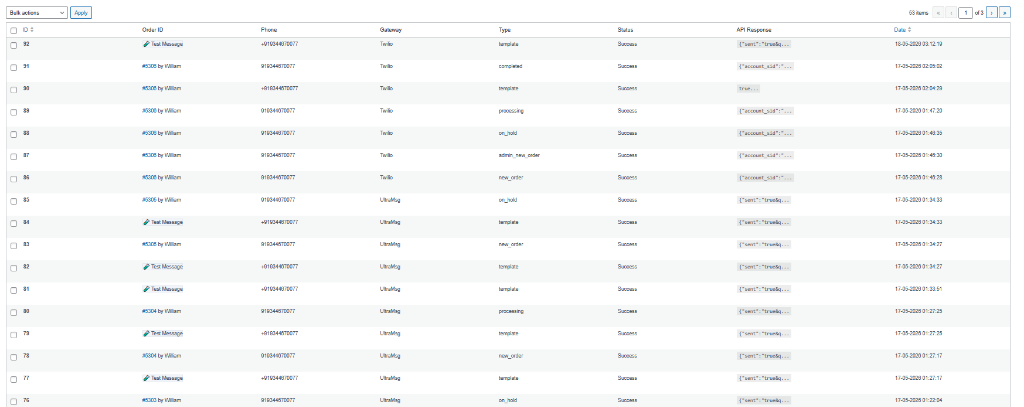
Navigate to WIB WhatsApp Notifier > Logs in your WordPress admin menu. This screen displays a complete audit trail of all outgoing messages, including:
- Exact delivery timestamp and recipient phone number.
- Dynamic success or failure status badges.
- Message body previews and active gateway tracking.
- Raw API Responses: Examine exact error codes returned by Meta or Twilio for effortless troubleshooting.
FAQ & Troubleshooting
Find quick answers to common questions and troubleshooting steps below:
This occurs when your WooCommerce trigger passes more or fewer variables than your Meta template expects. To fix this, go to WooCommerce > Settings > WhatsApp > Notifications and adjust the Variables Count setting for that trigger to match your template precisely.
Yes! If you do not have official Facebook Business verification, select the UltraMsg (QR Gateway). It links directly to your personal or business WhatsApp app via a simple QR code scan and requires zero template approvals.
Ensure you have checked the Enable Chat Widget box in the Chat Widget settings tab. Also, check that you have added at least one support agent and set their status to Online.
Navigate to WIB WhatsApp Notifier > License and enter your valid CodeCanyon Item Purchase Code. If you are developing locally (`localhost`, `*.local`), the plugin will verify and activate automatically.
Our dedicated technical support team is ready to assist you with any advanced configuration or troubleshooting needs.